
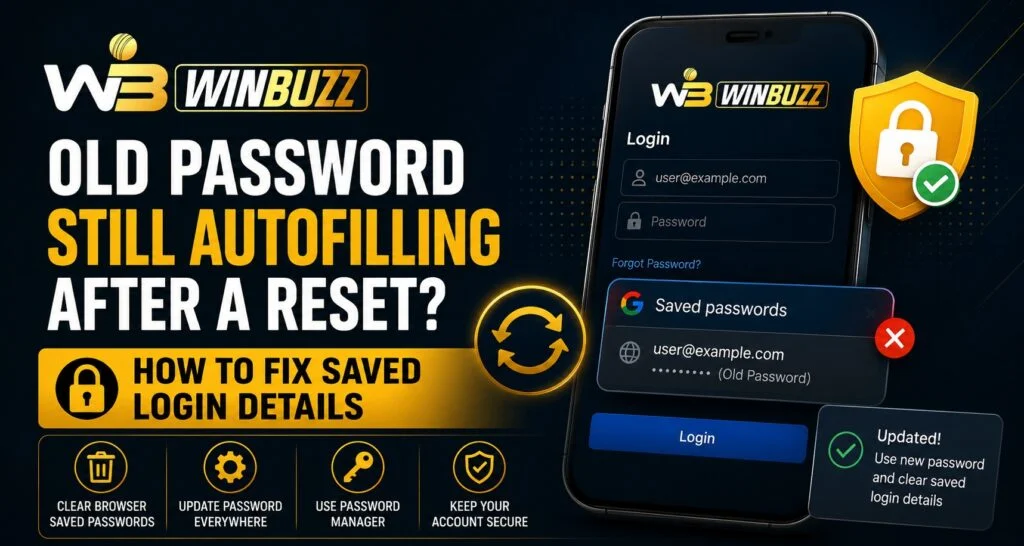
Changing a password is one of the most common security steps users take, but sometimes an old password may continue appearing automatically during login attempts. This usually happens because browsers, password managers, or devices store previous login information. Users managing accounts on platforms like Winbuzz often check why saved details remain after updating their password.
An outdated saved password does not always mean the reset failed. In most cases, the device is simply filling in older information stored in its memory. Understanding how saved login details work can help users remove outdated credentials and maintain better account security.
Why Does an Old Password Keep Autofilling?
Modern browsers and devices use autofill features to make logging in faster. When users save passwords, the system stores login information and automatically enters it when visiting a familiar website.
Old passwords may appear because:
- The browser saved the previous password.
- Multiple passwords are stored for the same account.
- Password manager data has not updated.
- Device settings are syncing old information.
- Cached login details remain available.
The saved password and the actual account password are separate. Updating one does not always remove the other automatically.
How Password Autofill Systems Work
Password managers store login details so users do not need to enter information manually every time.
The process usually involves:
- User saves login details.
- Browser encrypts and stores the information.
- The system recognises the website during future visits.
- Saved credentials appear automatically.
When a password changes, the browser may not immediately replace the old entry unless it detects the update or receives confirmation from the user.
Steps to Remove Old Saved Passwords
Removing outdated passwords is usually a simple process.
Users can follow these steps:
- Open browser settings.
- Go to saved passwords or password manager.
- Search for the related website.
- Remove the old saved entry.
- Save the updated password again.
After removing the outdated password, the browser will stop automatically entering incorrect login details.
Fixing Autofill Issues on Common Browsers
Different browsers have slightly different password management systems.
Google Chrome
Users can:
- Open Chrome settings.
- Select Password Manager.
- Find the saved website.
- Delete the outdated password.
- Add the updated login information.
Microsoft Edge
Users can:
- Open Settings.
- Go to Profiles.
- Select Passwords.
- Remove old saved credentials.
Mozilla Firefox
Users can:
- Open Settings.
- Select Privacy and Security.
- Access Saved Logins.
- Delete outdated entries.
Check Your Device Password Manager
Many smartphones also store passwords separately from browsers.
Devices may use:
- Google Password Manager.
- Apple Passwords.
- Third-party password managers.
- Device-based autofill services.
If an old password continues appearing, users should check these locations and update saved information.
Clear Cached Login Information
Sometimes saved passwords are not the only issue. Browsers may also store website data that affects login behaviour.
Users can try:
- Clearing browser cache.
- Restarting the browser.
- Updating the application.
- Signing out completely before trying again.
These steps can help refresh stored information.
Importance of Using Updated Login Details
Keeping saved credentials updated improves both convenience and security. Old passwords stored on devices can create confusion and may lead users to repeatedly enter incorrect information.
Users searching for Winbuzz Login information should ensure that their saved credentials match their current account password.
Good login practices include:
- Updating saved passwords after changes.
- Removing unused accounts.
- Avoiding shared devices.
- Using secure password management tools.
Mobile App Password Storage and Updates
Mobile applications may also store login details through device-level password managers. If users update their account password but their phone continues using old information, they may need to refresh saved credentials.
Users accessing services through Winbuzz App should regularly review saved login information on their device.
Recommended steps:
- Remove outdated saved passwords.
- Update the application.
- Check device autofill settings.
- Avoid saving passwords on public devices.
Security Tips for Managing Saved Passwords
Password management plays an important role in protecting online accounts.
Users should:
- Use unique passwords.
- Enable additional security features when available.
- Avoid sharing login details.
- Review saved credentials regularly.
- Remove unused passwords.
Strong password habits reduce the risk of unauthorised account access.
Understanding Account Access and Saved Details
Users may search for Winbuzz Com and Winbuzz ID information while managing their accounts, but saved login details are controlled by the device or browser, not the website itself.
Keeping browser and device settings updated helps prevent repeated login problems caused by outdated stored information.
When Should You Contact Support?
If saved password issues continue even after removing old credentials, users should check whether:
- The correct username is being used.
- The password reset was completed successfully.
- The account has additional security verification.
- The device has multiple saved accounts.
If the issue is related to account access rather than autofill, contacting Official Support may be helpful.
Final Thoughts
An old password appearing after a reset is usually caused by saved login information stored in browsers, devices, or password managers. The account password may already be updated, but the device continues using outdated credentials.
Removing old saved passwords, refreshing autofill settings, and keeping login information updated can help prevent future issues. Good password management practices improve both convenience and account security.
FAQs
Why does my old password appear after I reset it?
Your browser or device may still have the previous password saved in its password manager or autofill settings.
Does deleting saved passwords remove my account password?
No. Removing saved passwords only deletes stored login information from your device, not the actual account password.
How can I stop autofill from entering the wrong password?
Delete the outdated saved password and save the updated password again.
Should I save passwords in my browser?
Browser password managers can be useful, but users should ensure their devices are secure and protected.
What should I do if my new password still does not work?
Confirm that the reset was completed correctly, remove old saved credentials, and try logging in again.


