
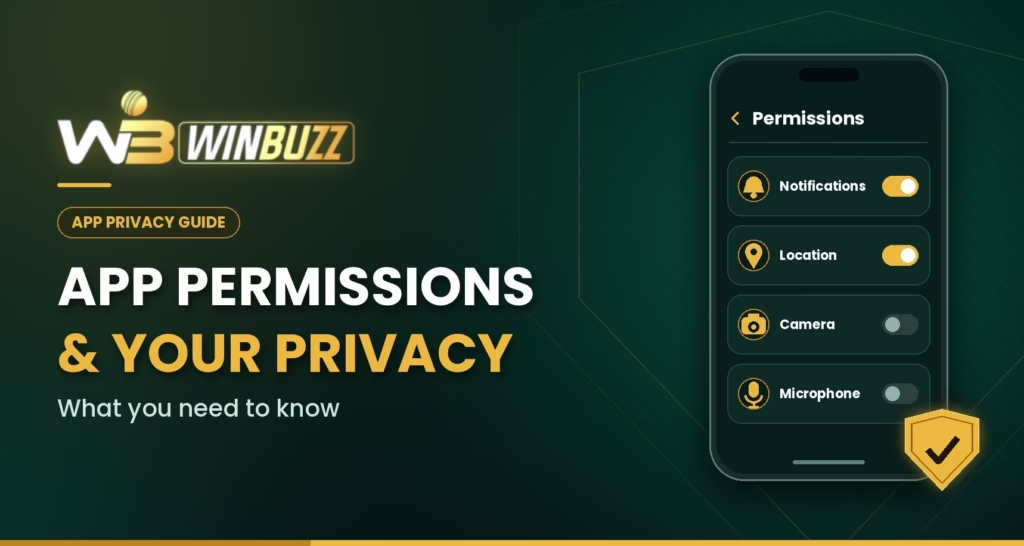
You install a sports app to check a match, and it asks to access notifications, location, or your contacts. Should you allow everything just to get started? Understanding what each permission does can help you make a more informed choice. This guide explains how Winbuzz users can review app permissions and privacy details before signing in or sharing personal information.
Know what a permission allows
A permission gives an app access to a device feature or information. Depending on your phone and app version, examples may include notifications, location, camera, microphone, contacts, or photos. A permission request does not by itself tell you how information is used or whether it is shared, so review the privacy notice as well.
Ask whether the feature needs that access. If an app asks for your location while you are only checking a score, pause and look for an explanation before allowing it. The right choice depends on the feature you plan to use and the information the app describes.
Review requests one at a time
You do not need to approve every request in a hurry. Read the prompt, consider what the feature does, and allow access only if it makes sense for that task. If you decline and a feature does not work, you can decide later whether to change the setting.
On many phones, you can review permissions in the device settings under the app’s information or privacy controls. The exact menu names vary by operating system and version. Check the settings on your device rather than relying on instructions written for a different model.
Separate app permissions from data practices
A permission controls access to a device capability, while a privacy policy describes how a service may collect and use information. A policy may discuss details you provide, account activity, device information, or transaction records. Read the current policy to see which categories apply and why they are needed.
Look for plain answers to practical questions: What information is collected? Is it shared with service providers? How long is it kept? How can you contact support about privacy? If the explanation is unclear, avoid sharing optional information until you understand the request.
Protect your account during sign in
When using Winbuzz login, check that you reached the sign in page through a source you have independently verified. Keep your password private, use a unique one, and do not share one time codes with a person who contacts you unexpectedly.
If you use a shared phone or computer, do not save your password and remember to sign out. Review notifications on the lock screen too. A code displayed in a notification may be visible to someone holding an unlocked device, so choose a setting that suits your privacy needs.
Check the app source and version
Before installing an app, confirm the publisher and source. Be careful with files sent through group chats, social media, or unfamiliar download pages. An app with a familiar name or logo may not be the same product you intended to install.
Permissions can change between app versions. After an update, review any new request instead of assuming it is required because an older version worked. If you no longer use a feature, you can revisit the permission settings and remove access you do not need.
Make privacy checks a regular habit
Your expectations may change as you use more services on your phone. A quick review of permissions and privacy details after installation, before sharing sensitive information, and after major updates can help you stay aware of what you have approved.
We encourage users to make these checks at their own pace. Privacy is easier to manage when you understand the choices in front of you, rather than accepting every prompt automatically.
Read More : Winbuzz App Match Alerts and Notification Settings Guide
Conclusion
Review the purpose of each permission, read the current privacy notice, and protect your sign in details. Take time to check the specific app and version before deciding whether Winbuzz fits your privacy expectations. Explore its information carefully and make the choices that feel right for you.
FAQs
Why does an app ask for permissions?
Permissions let an app use certain device features, such as notifications or a camera. Check whether the requested access makes sense for the feature you want to use.
Does granting a permission mean my information is being shared?
Not necessarily. A permission allows access to a device feature, while the privacy policy explains how the service may handle information.
Where can I review app permissions?
Look in your phone’s settings under the app information or privacy controls. Menu names vary by device and operating system version.
Should I install an app file sent in a chat?
Be cautious with files from unfamiliar contacts or download pages. Verify the publisher and source before installing anything.
What should I check in a privacy notice?
Look for what information may be collected, why it is used, whether it is shared, and how long it is kept. If the explanation is unclear, avoid sharing optional details until you understand the request.


